How to make a corkboard photo wallpaper for your Mac
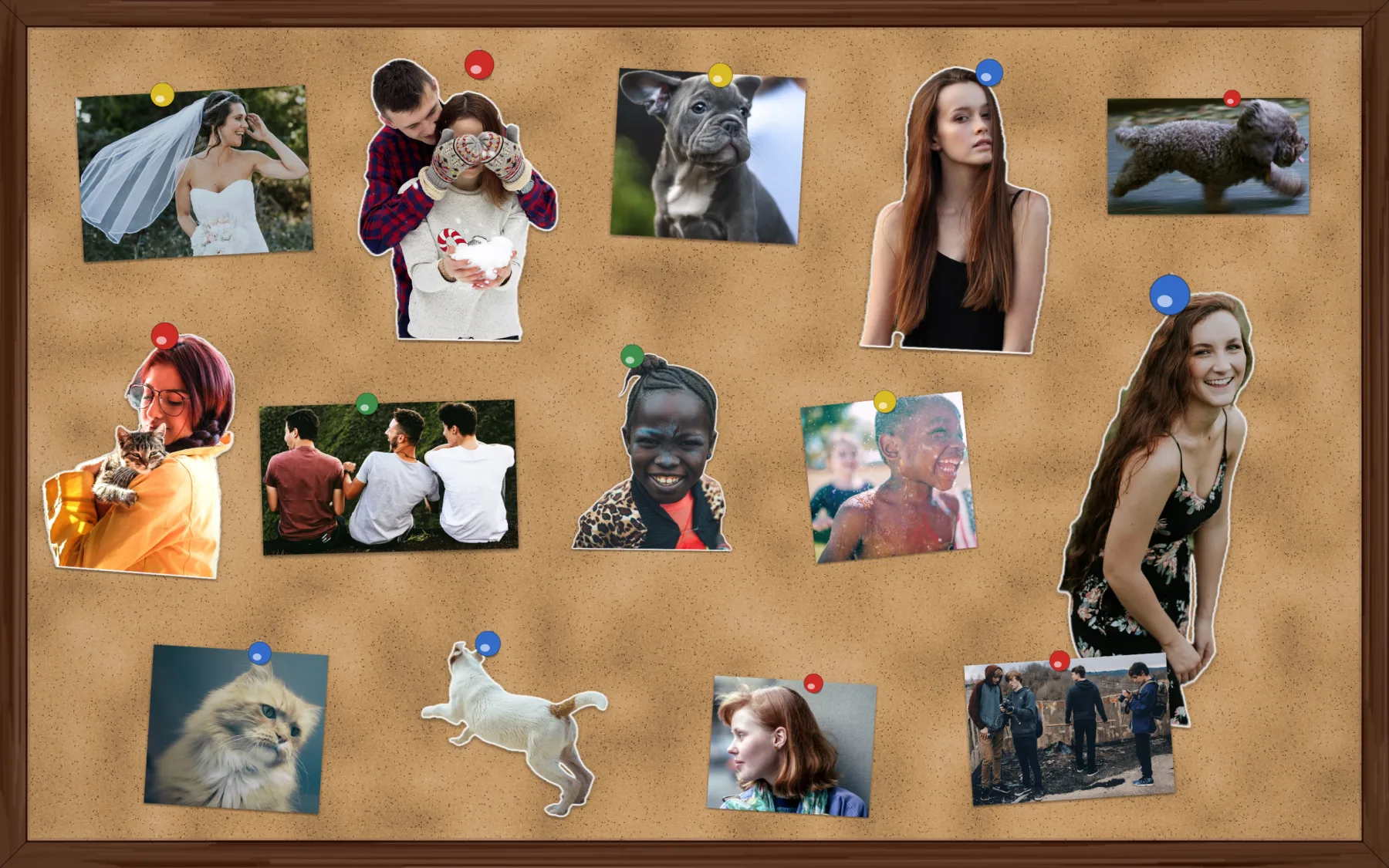
In short: Choose the Corkboard style on the Canvas and drop in your photos. Each one is held by a pushpin and sits a little askew, like a real board in a hallway.
What you end up with
A cork board with a wooden frame in place of your desktop, covered with photos held by coloured pushpins. Cut-outs and prints overlap and sit slightly crooked, because a real board is never tidy.
Make it in Sticta
- Create a project and open the Canvas.
- Pick the Corkboard style. Change the look with Cork tone and Frame color.
- Drag your photos in. Each sticker gets a pushpin.
- Drag stickers around, make them bigger or smaller and let some overlap. There is no grid on a corkboard.
- Click Set as Wallpaper.
Mix cut-outs and prints
Want a different look? Select a sticker and pick a style in the inspector: Classic (cut-out with an outline), Polaroid, Original photo (the photo as it was taken, no cut-out) or Clean cut. Mixing styles makes a wallpaper feel less uniform.
On a corkboard, Original photo looks like a print pinned to the board and a cut-out like a sticker. The example mixes about half and half.
Add a clothesline
A clothesline works on a corkboard too: switch on Clothesline in the canvas settings and hang a few photos from it between the pinned ones.
Private by design
Sticta never connects to the internet and your photos never leave your Mac. Privacy policy.
Free to download · Sticta Unlimited is a one-time purchase · Mac with Apple silicon, macOS 14 or later
The photos in this example are free CC0 pictures, see credits.