How to make a monthly calendar wallpaper from your photos
In short: Pick the Timeline scene and the Month layout. Each photo lands on the day it was taken, so the month fills up like a diary.
What you end up with
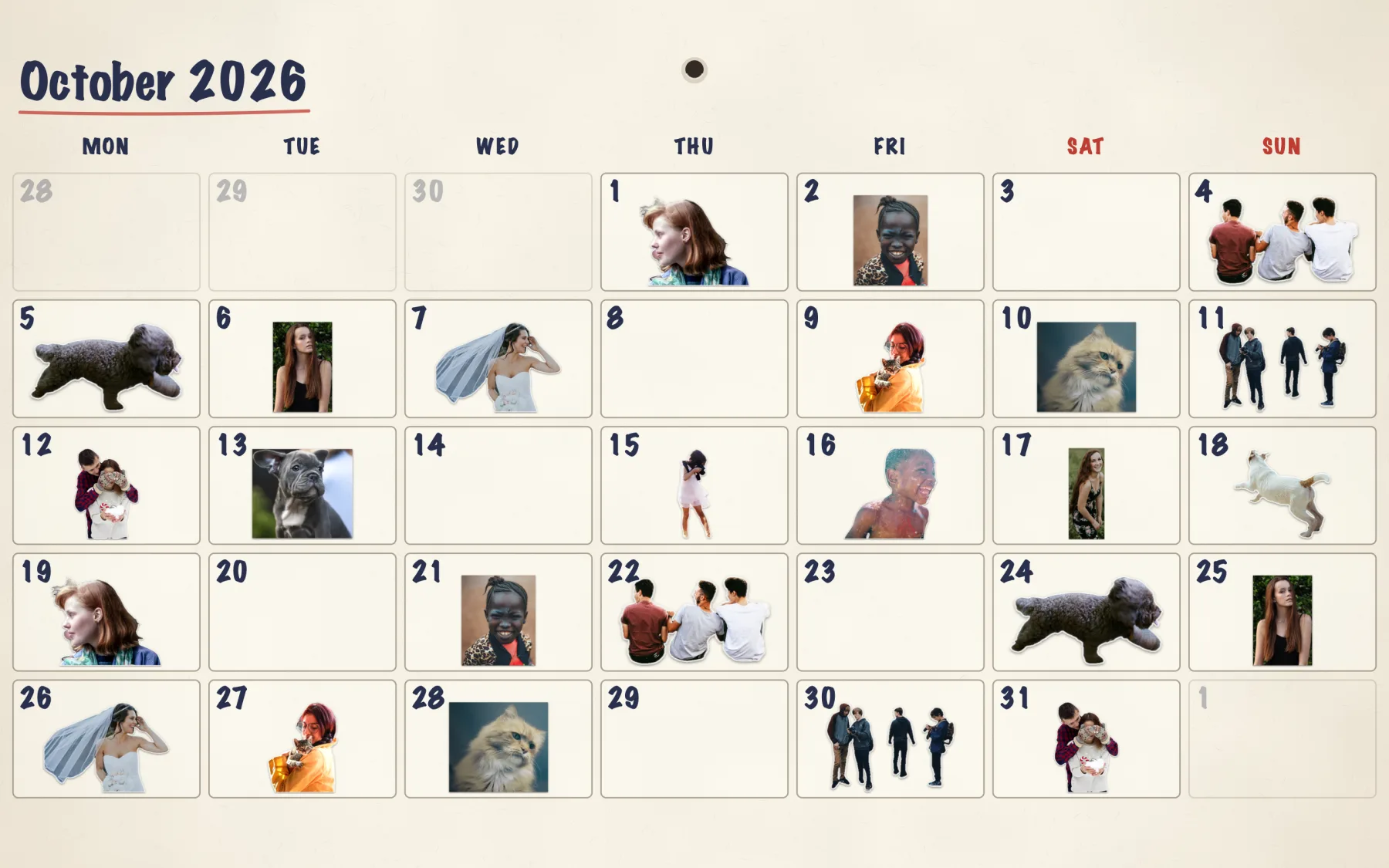
A calendar for one month, Monday first, with your photos stuck on the days they were taken. It is a photo diary you see every time you look at your desktop.
Make it in Sticta
- Create a project and switch the scene to Timeline.
- Under Layout choose Month, then set the Period to the month you want.
- Set Background to Calendar paper (or try Chalkboard, Kraft, Dot grid or Night paper).
- Drag your photos in. Each one goes into the cell of the day it was taken.
- A photo without a date, or from another month, waits in a row at the bottom. Drag it onto a day to date it there.
- Click Set as Wallpaper.
Change how it looks
Under the layout settings you can change the theme, the font and the frame style. You can also mix sticker styles: select a sticker and pick Classic, Polaroid, Original photo or Clean cut. In the example nearly every day has a sticker, some cut-outs and some the original photo.
Want a wall calendar instead?
The Wall calendar layout puts all the month’s photos into one big collage next to the days. Same steps, pick it in Layout.
Private by design
Sticta never connects to the internet and your photos never leave your Mac. Privacy policy.
Free to download · Sticta Unlimited is a one-time purchase · Mac with Apple silicon, macOS 14 or later
The photos in this example are free CC0 pictures, see credits.