How to make a fridge photo wallpaper for your Mac
In short: Choose the Fridge style on the Canvas, drop in your photos and each one is held on with a magnet. Set it as wallpaper and your desktop looks like the front of a fridge.
What you end up with
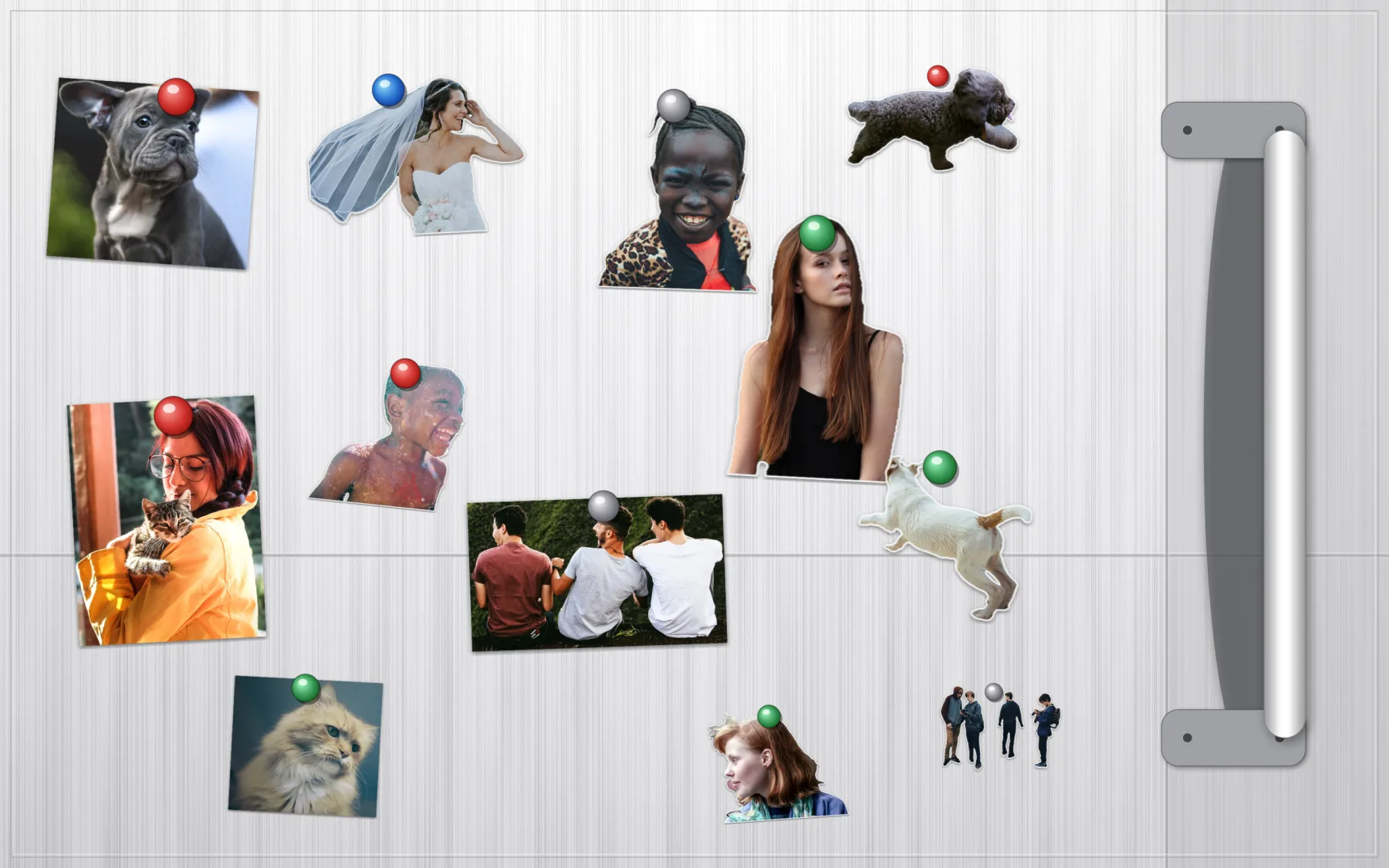
A fridge door as your desktop, with photos stuck on by round magnets: the family, the dog, the friends from last summer. It is the corner of the kitchen you look at every day, only on your Mac.
Make it in Sticta
- Create a project and open the Canvas.
- Pick the Fridge style, then a body colour: White, Steel, Black, or any colour with Body color.
- Drag your photos in. Each sticker gets a magnet.
- Drag a sticker near a slot on the grid to snap it into a tidy row. Drag it away from every slot to leave it free, like a magnet put on crooked.
- Click Set as Wallpaper.
Arrange it your way
The first picture is a free arrangement: stickers in different sizes, tilted, overlapping, some in clusters. Drag a corner of a sticker to resize it and use the rotate handle to tilt it.
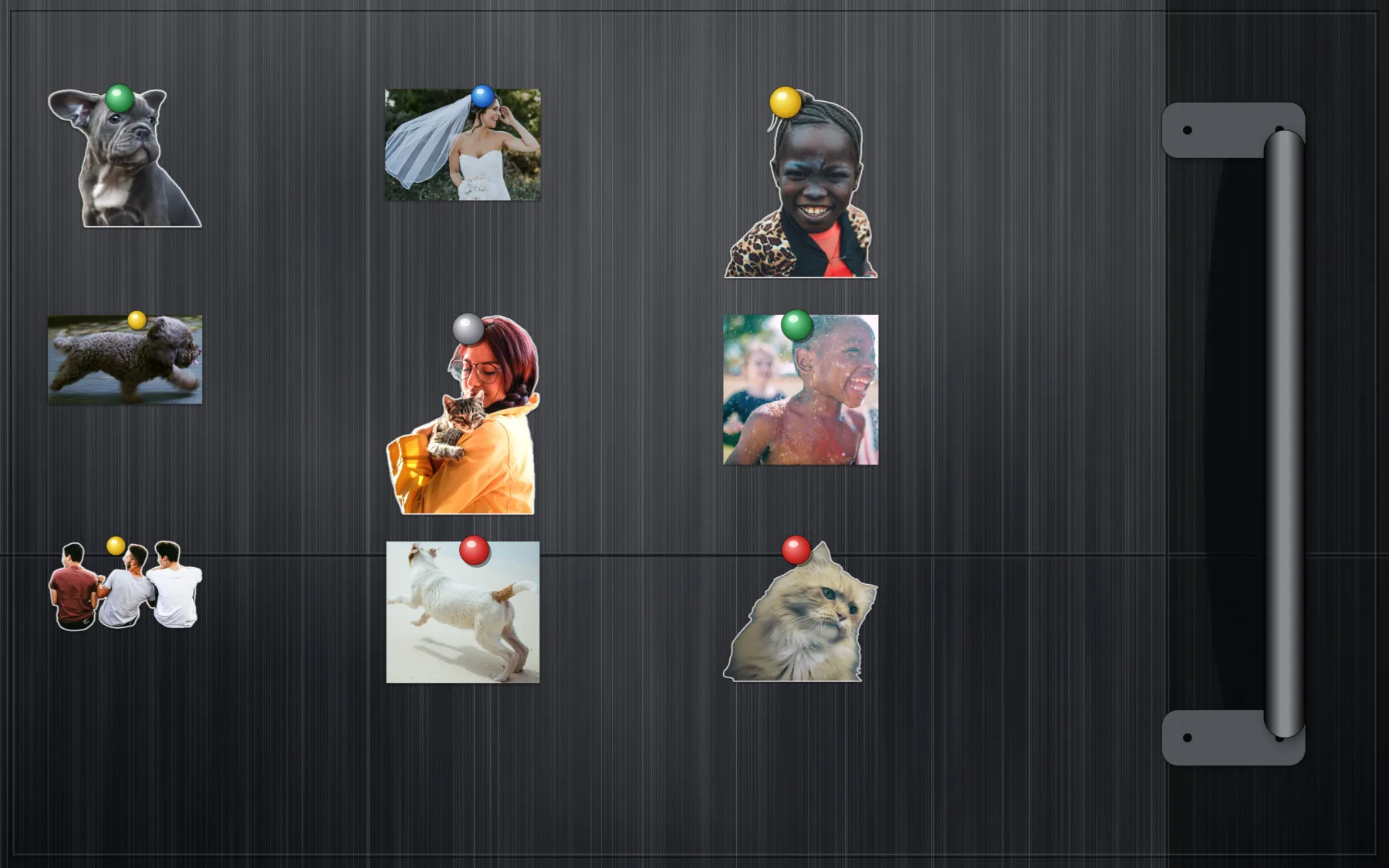
Below is the tidy version: every sticker snapped to a slot of the fridge grid, on the Black body.
Make it look like real prints
Want a different look? Select a sticker and pick a style in the inspector: Classic (cut-out with an outline), Polaroid, Original photo (the photo as it was taken, no cut-out) or Clean cut. Mixing styles makes a wallpaper feel less uniform.
On the fridge, Original photo works best for the rectangular prints, and Classic for people and pets you want as cut-outs. The examples use both.
Make room for the desktop
The editor shows where the menu bar, the Dock and desktop icons will sit, so no magnet ends up hidden behind an icon.
Private by design
Sticta never connects to the internet and your photos never leave your Mac. Privacy policy.
Free to download · Sticta Unlimited is a one-time purchase · Mac with Apple silicon, macOS 14 or later
The photos in this example are free CC0 pictures, see credits.